

Your First Library: Import, Find, and Open
Complete one small import using sample photos or a short clip. Keep the original copies. Confirm the node is online, licensed, and has enough space. Only an owner can create or include a main folder; members can use a folder already created for them.
1. Create a main folder
- Select the intended node at the top of the workspace.
- Click + → Create Main Folder in the left home-folder section.
- Name it “Sample media”. Keep the default storage location or choose a directory on the node device.
- Confirm. “Sample media” should appear on the left. An empty file list is expected.
A new directory is created under the selected location; the parent directory is not included as a whole. If media already lives on the node, use Include an Existing Folder.
2. Import a few files
- Open “Sample media” and drag your sample photos into the file list.
- If destination confirmation appears, check the node, main folder, and subdirectory.
- Track upload tasks in the task panel. Wait for every file to complete. Read failures before trying again; a submitted task is not a completed copy.
- Open a photo and check its contents. Import copies files; originals on your computer remain.
Filename search can work before previews finish. AI search additionally needs model download and analysis.
3. Search and check the result
Open workspace search, turn AI search off, and enter a distinctive part of a filename. Results are grouped by node. Check the node name before opening a file.
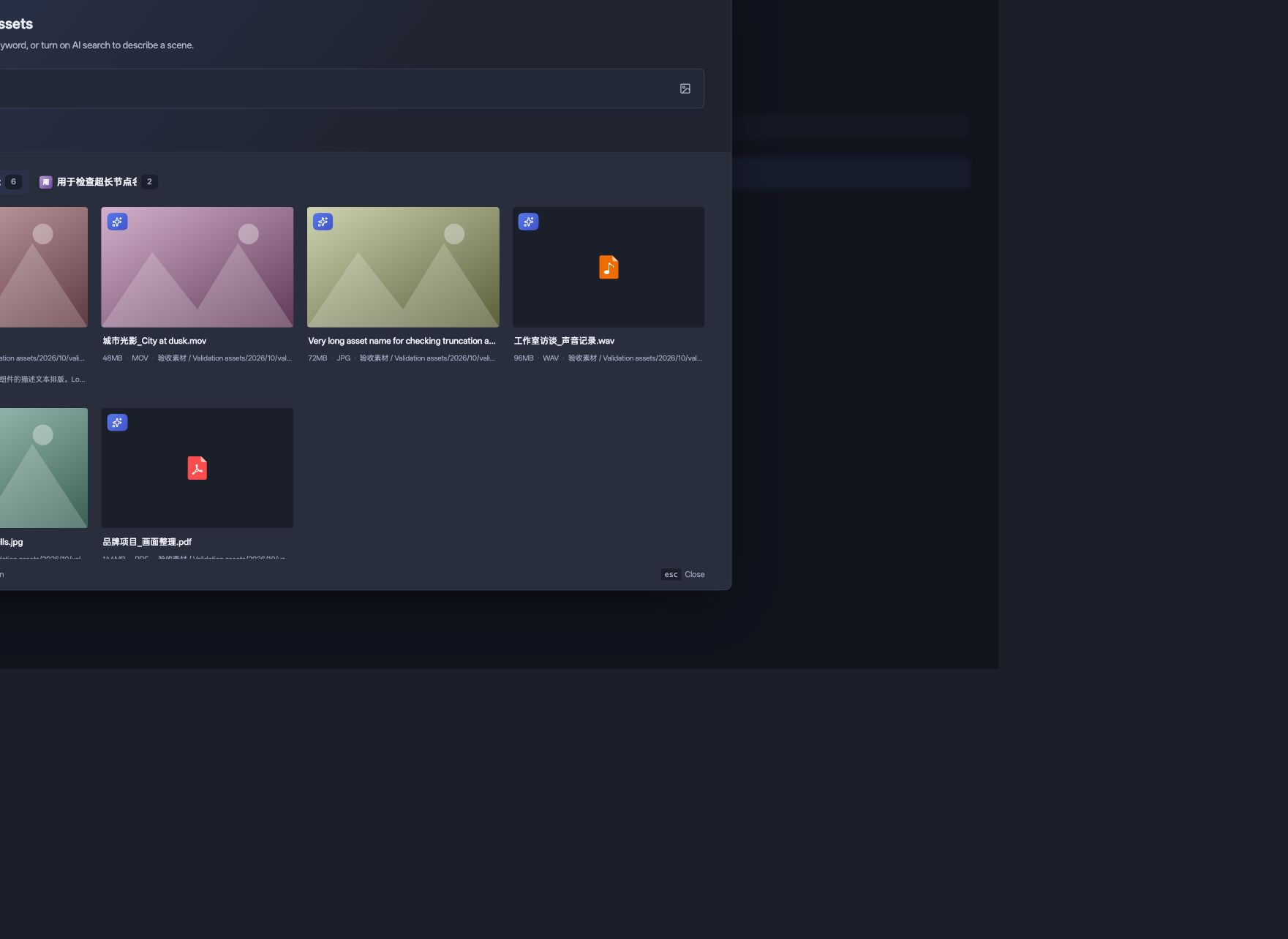
Actual client components with demonstration data. Images, node names, and filenames are samples.
If you find and open the file, your first import is complete. Otherwise check the destination and task status; see Search Troubleshooting.
4. Use media in an editor
When needed, configure Local Mount, then import the mounted sample file into your editor. Play a short clip before starting a production project.
When to pause and check
| What you see | Next action |
|---|---|
| No “+” or creation unavailable | Confirm the selected node and owner role, or ask its owner to create a folder |
| Failed task or insufficient capacity | Check the failure and license capacity; avoid repeatedly submitting the same batch |
| File present but no preview | Check originals separately from previews; see Ingest Media |
| Offline node | Restore connectivity; a directory snapshot does not make originals available |
You can keep the sample folder. Do not test permanent deletion on production media.