

Find Media
Start with a filename to confirm that media is in the library, then search by visual, spoken or recognized text content. AI matches are suggestions: a result may be wrong, and no result does not prove that a file is absent.
Filename and path search
Global search at the top of the workbench combines accessible online nodes. Offline nodes with saved directory snapshots can also return filenames and paths. Those records may be outdated, and cannot open offline originals. Check the node shown with each result.
The current folder and filters constrain the file list; that scope differs from global search. If results are missing, clear tag, type and time filters, then search for part of the complete filename.
Enable AI search
- Open Management Center → AI and check model status and storage location.
- Choose Download Models when missing, or Resume Download after an interruption. Use the space requirement displayed on the page; it is not a fixed 1.6 GB.
- Enable AI after download completes. Keep the node and the client performing analysis online.
- Wait for the relevant analysis tasks to finish before testing searches.
Model downloads require internet access. AI analysis uses local devices. Uploading to a cloud drive or deliberately sharing externally sends media to the destination selected for that feature.
Search by content
Search can combine images, video frames, analyzed audio transcripts and recognized text. Availability depends on the relevant models, processing status and node capabilities. AI content search needs online nodes; an offline directory snapshot cannot substitute for analyzed content.
Try “mountains at sunset,” “a person in red walking in the rain,” or a sentence spoken in a recording. Check preview and analysis status before changing the description. Repeatedly toggling AI is not a model-download procedure.
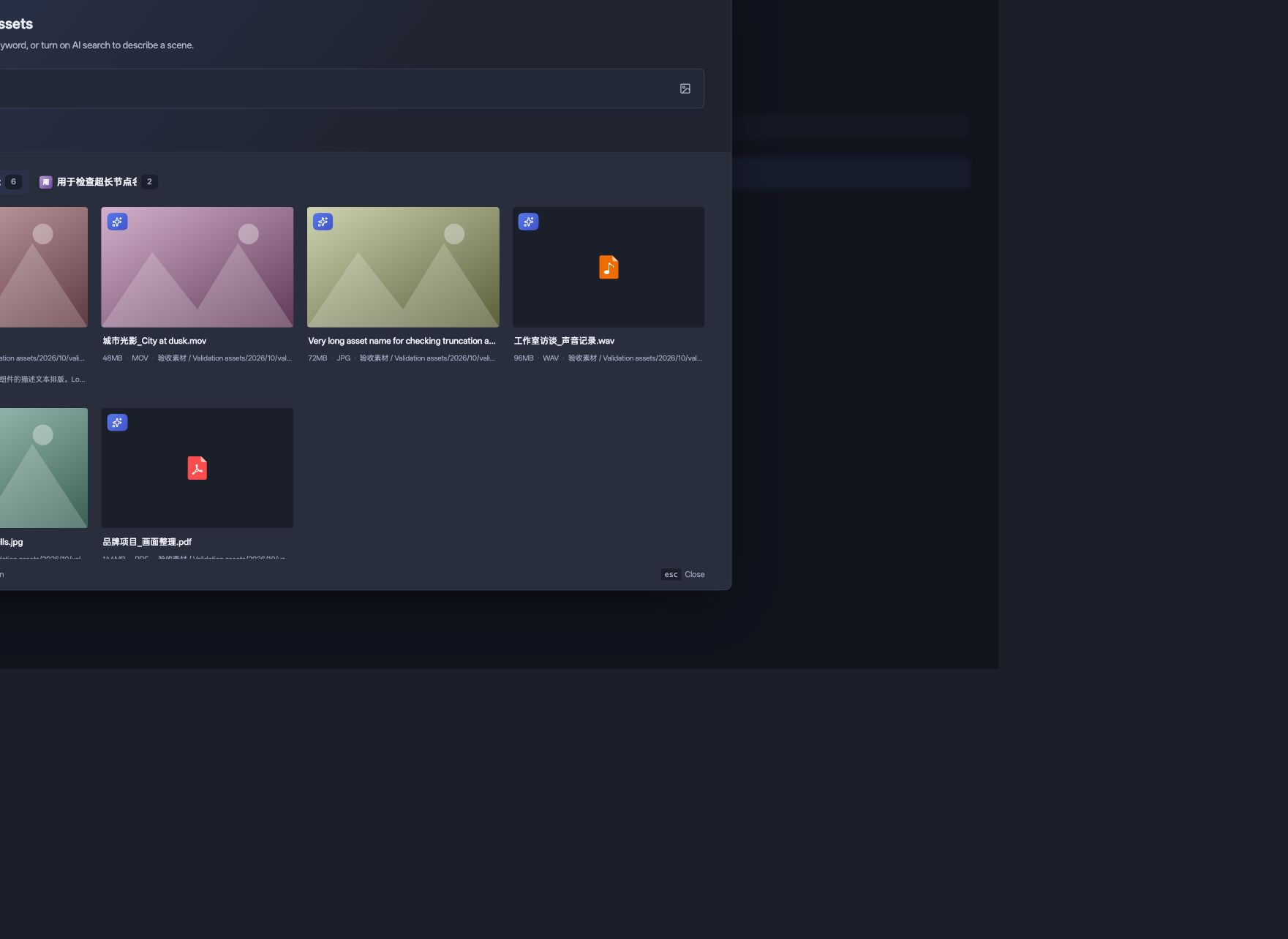
This interface example uses demonstration data to show node grouping and filter controls. Your media and results will differ.
Tags, ratings and colors
Select a file and use the right panel to add tags, assign a color or set a 1–5 star rating. Use filters to narrow the list. Multiple selected tags require all of those tags to match; clear old conditions when necessary.
AI suggestions require analysis and your approval before adoption. Suggested tags can display translated aliases, while stored values remain Chinese. Typing an English alias is not equivalent to matching a stored tag. Select the tag in the filter panel in English. Filename search is also distinct from tag filtering.
Use the type, size and date options offered by the current filter panel. Color filtering narrows candidates but does not guarantee an exact visual color match.
See AI and search issues if results are missing.